Malaysia
 Thailand
 Indonesia


EasyConnect
Integrate Payrecon with EasyParcel in 14 steps.
-
Login & Install Payrecon App
Log in to EasyParcel, go to EasyConnect, and install the Payrecon app.
-
Enter Store Details
Fill in your store name and store URL, then click 'Add'.
-
Copy Integration ID
Your store API key / Integration ID will be generated. Copy it.
-
Login to Payrecon
Log in to your Payrecon account to continue the setup.
-
Go to User Settings
Navigate to Setting > User Settings, select Other, then click Update API.
-
Paste API Key
Paste the API Key in the respective column, then click Update.
-
Set Pickup Address
Click on Set Pickup Address to configure your collection point.
-
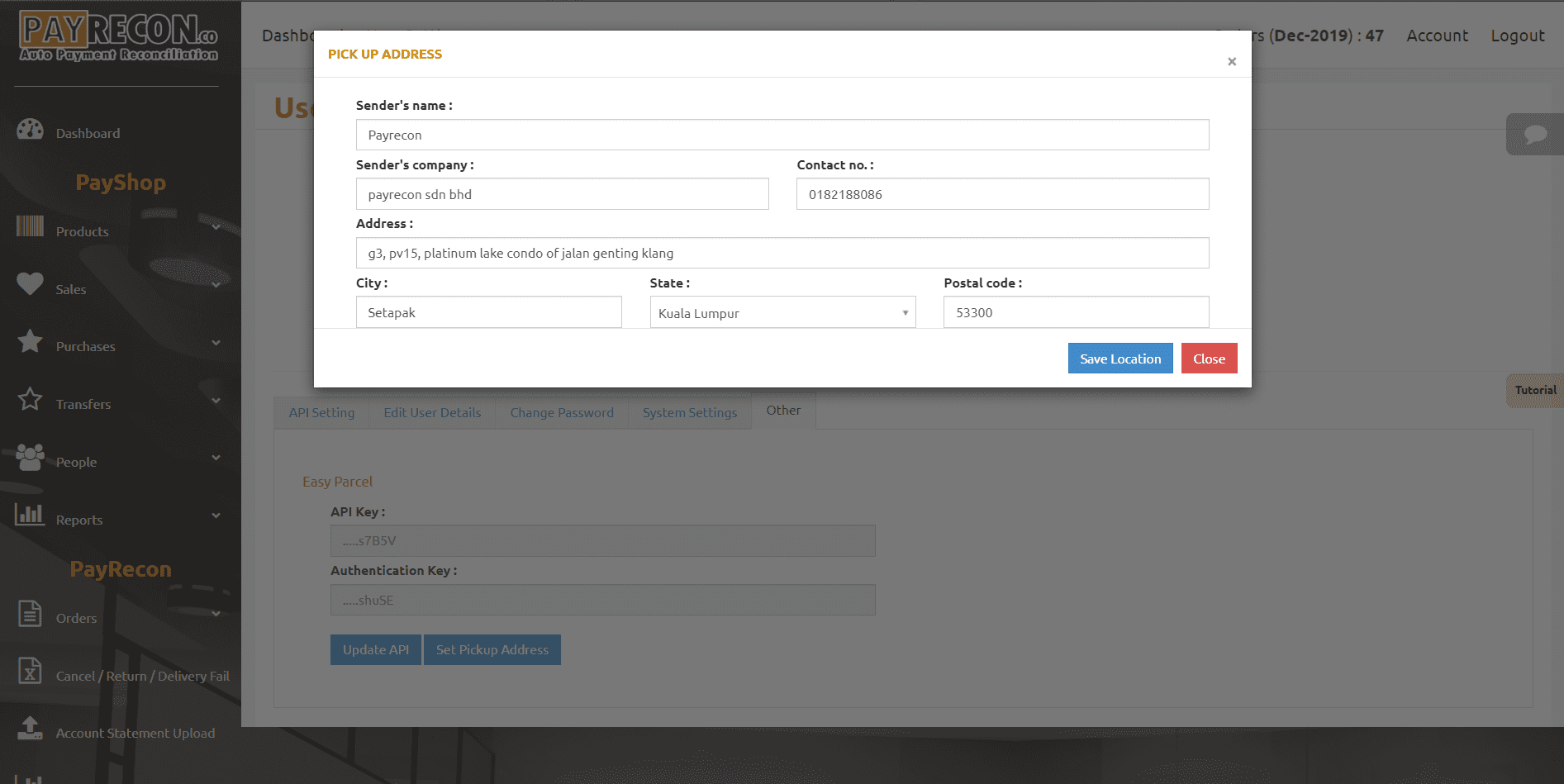
Save Pickup Location
Insert all required information, then click Save Location.
-
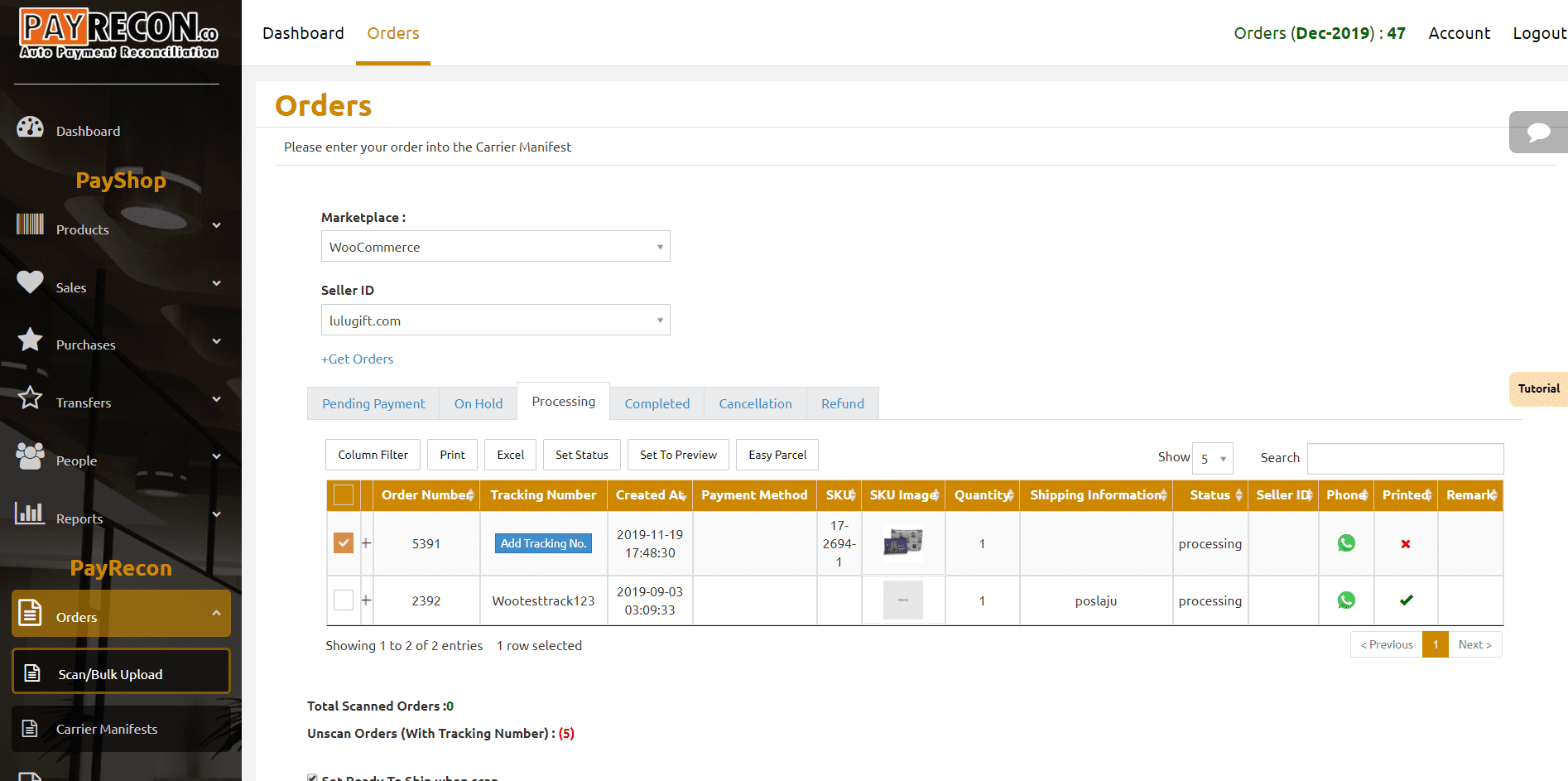
Select Order & Click EasyParcel
Select the order to process and click Easy Parcel.
-
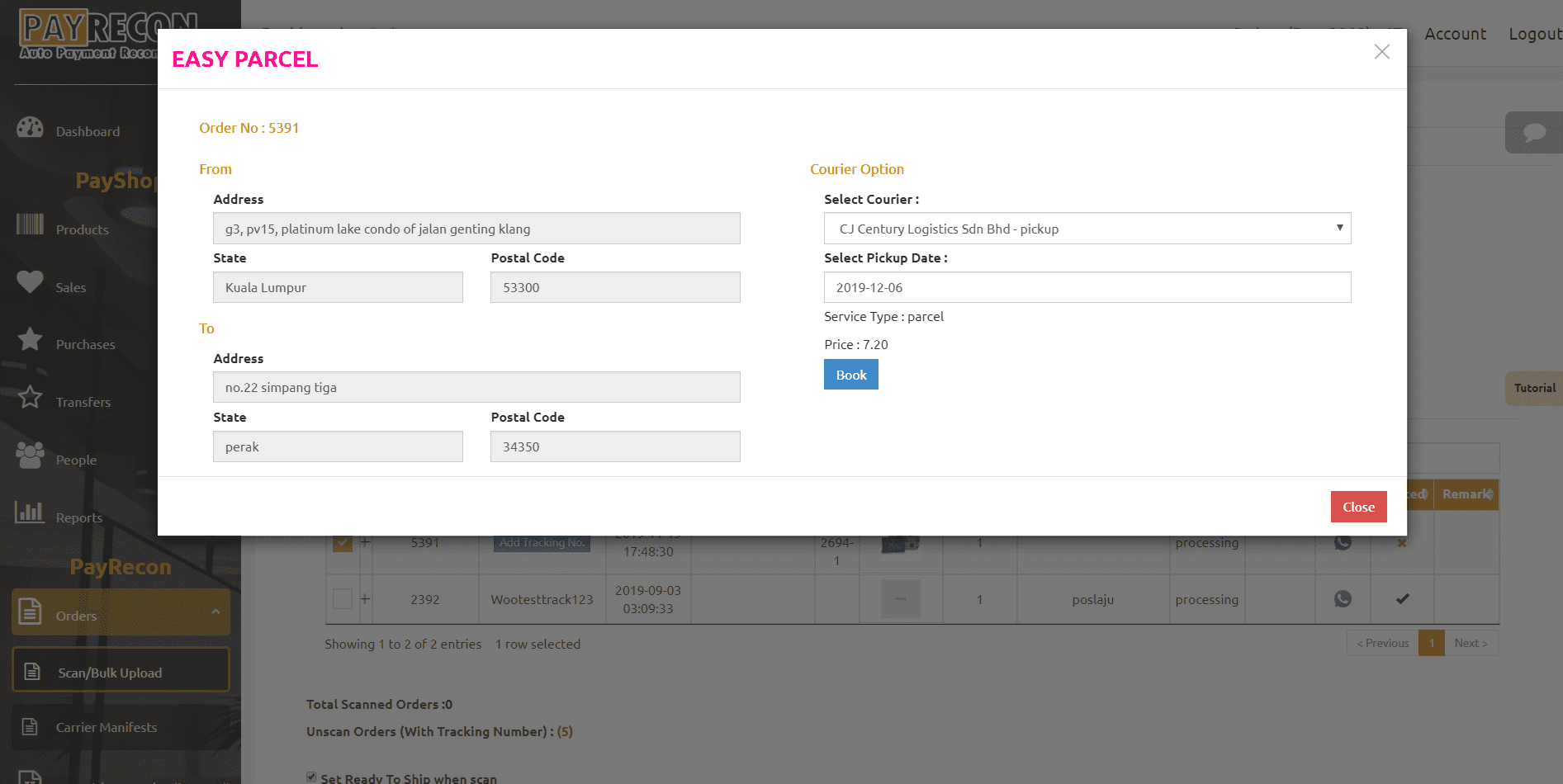
Select Courier & Book
Choose a courier and pickup date, then click Book.
-
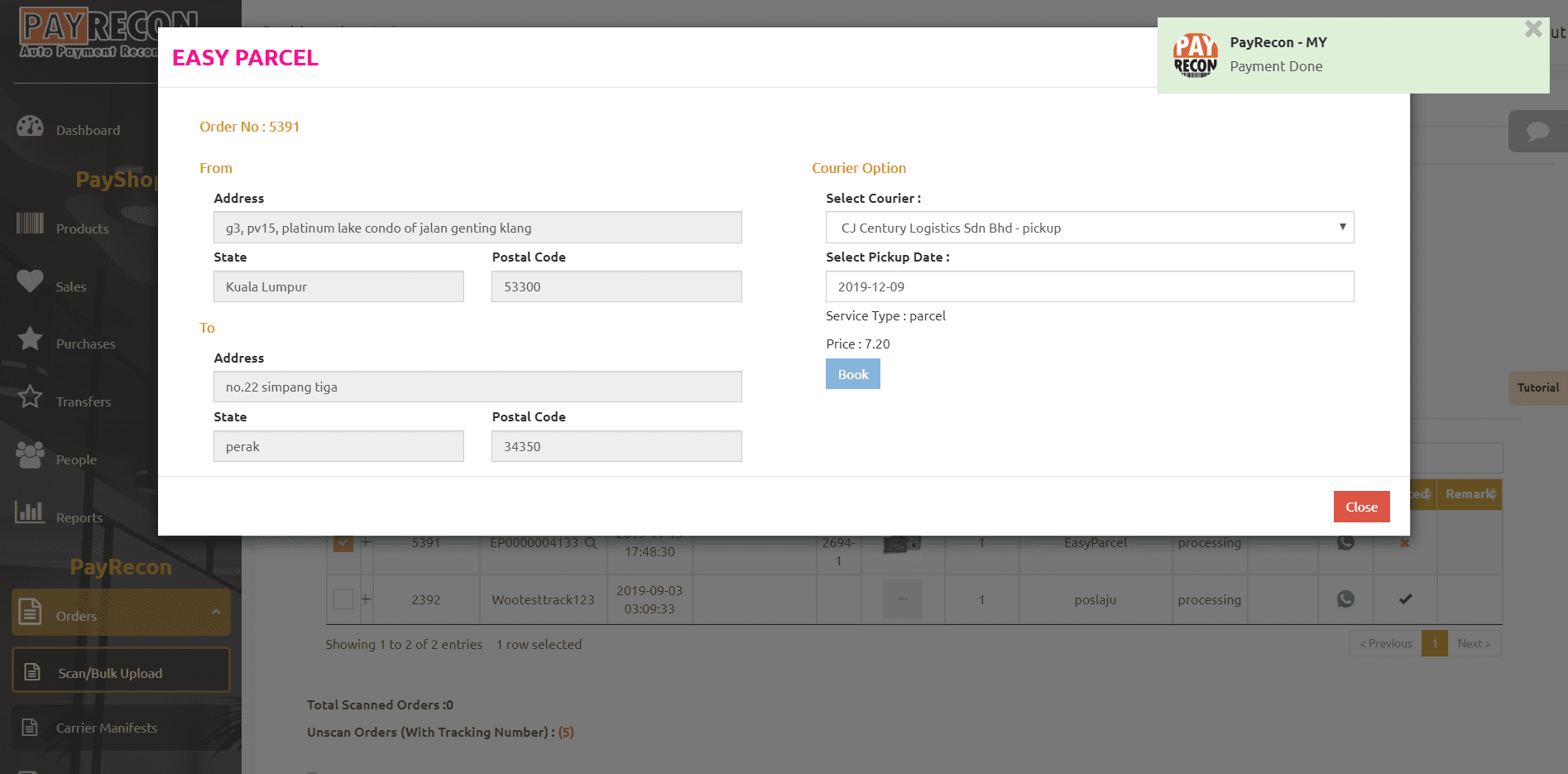
Booking Confirmation
A success message will appear. Click Close to continue.
-
Tracking Number Generated
Tracking number is now shown and the shipping label is ready to print.
-
Print Shipping Labels
Click Print > Print Shipping Label for Selected Orders.
-
Shipping Label Ready
Your shipping label is ready. Print it out and attach it to the parcel.
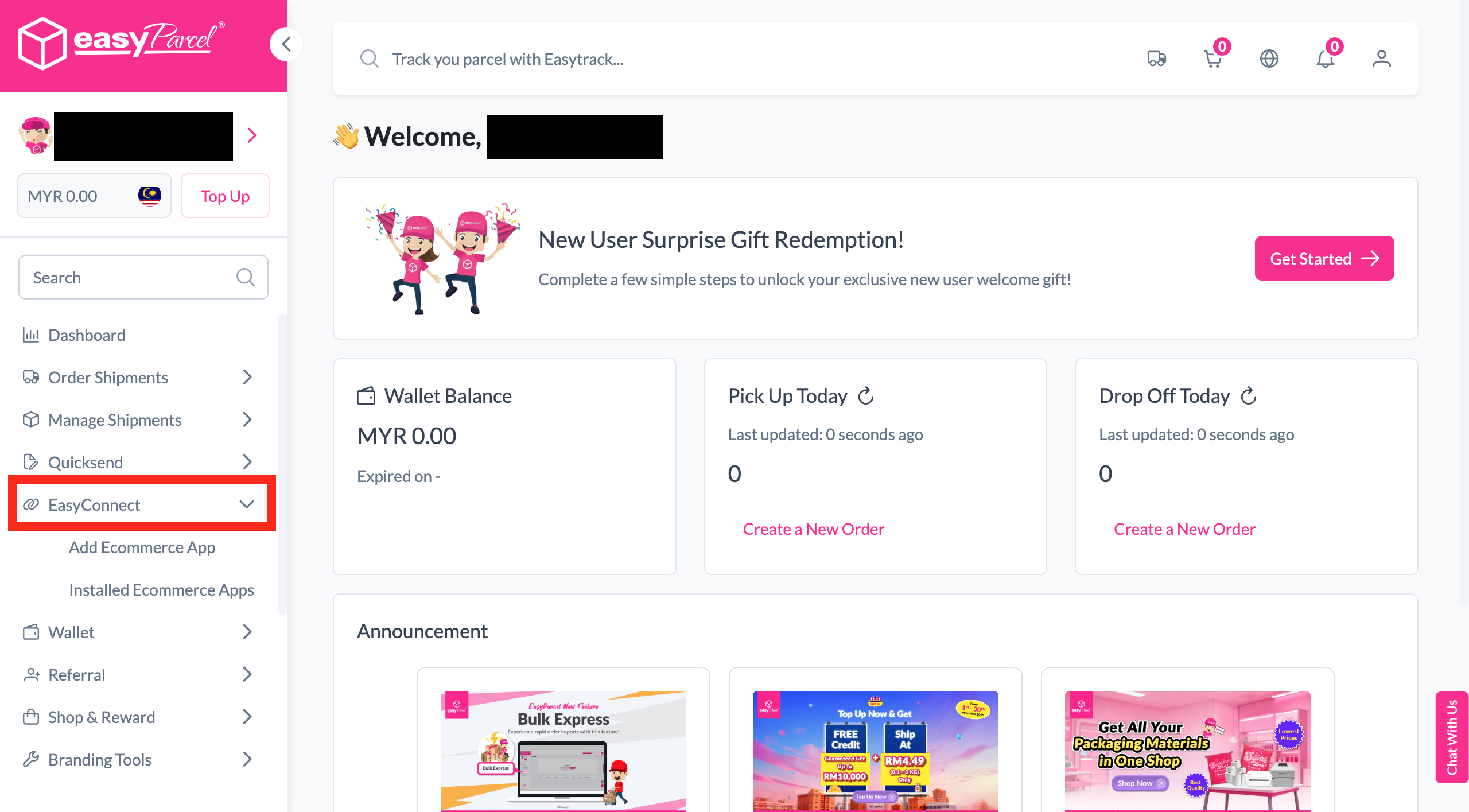
Login & Install Payrecon App
Log in to your EasyParcel account, navigate to EasyConnect, then click 'Add Ecommerce App'. Search for 'Payrecon' and click 'Install App' to get started.
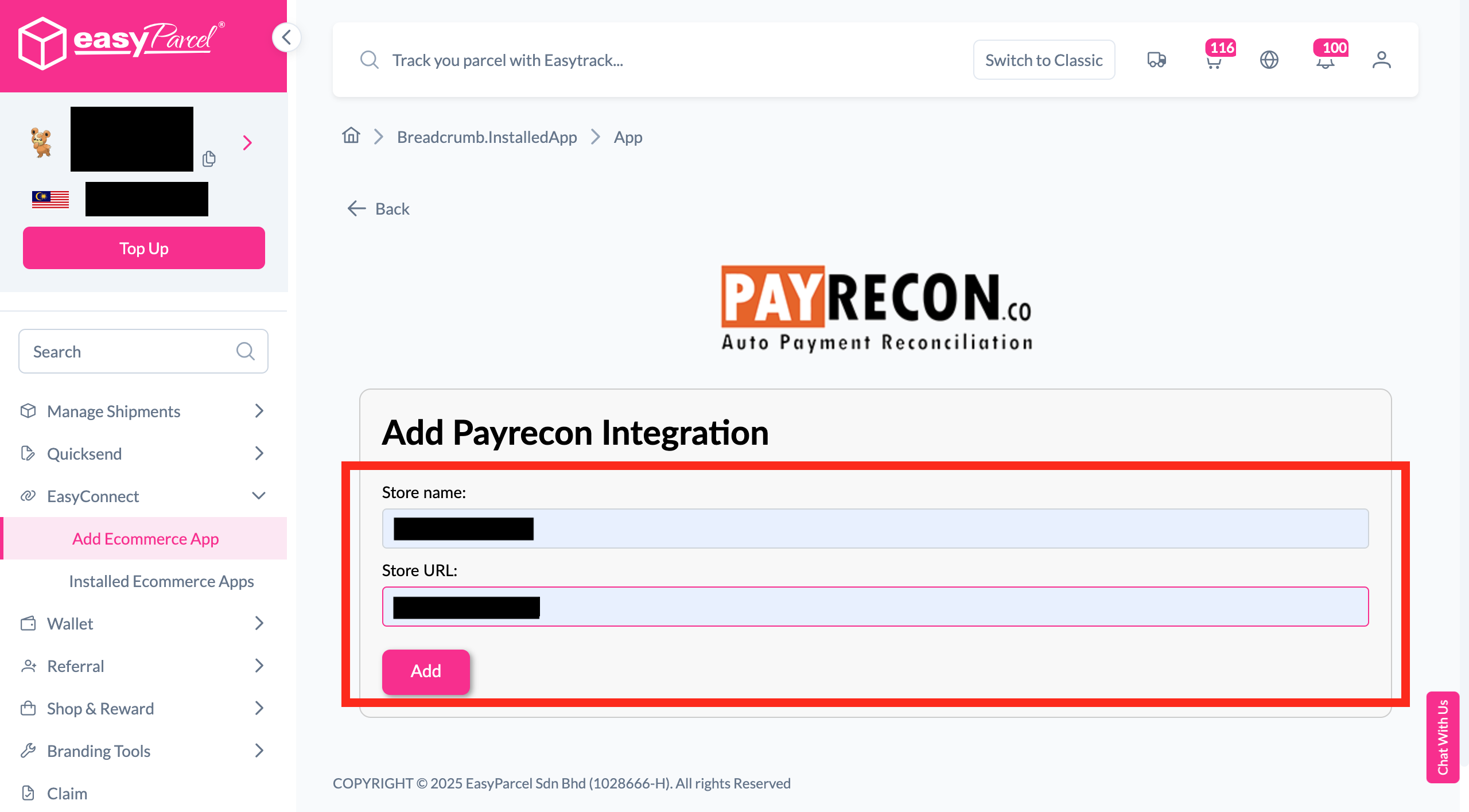
Enter Store Details
Fill in your store name and store URL, then click 'Add' to proceed.
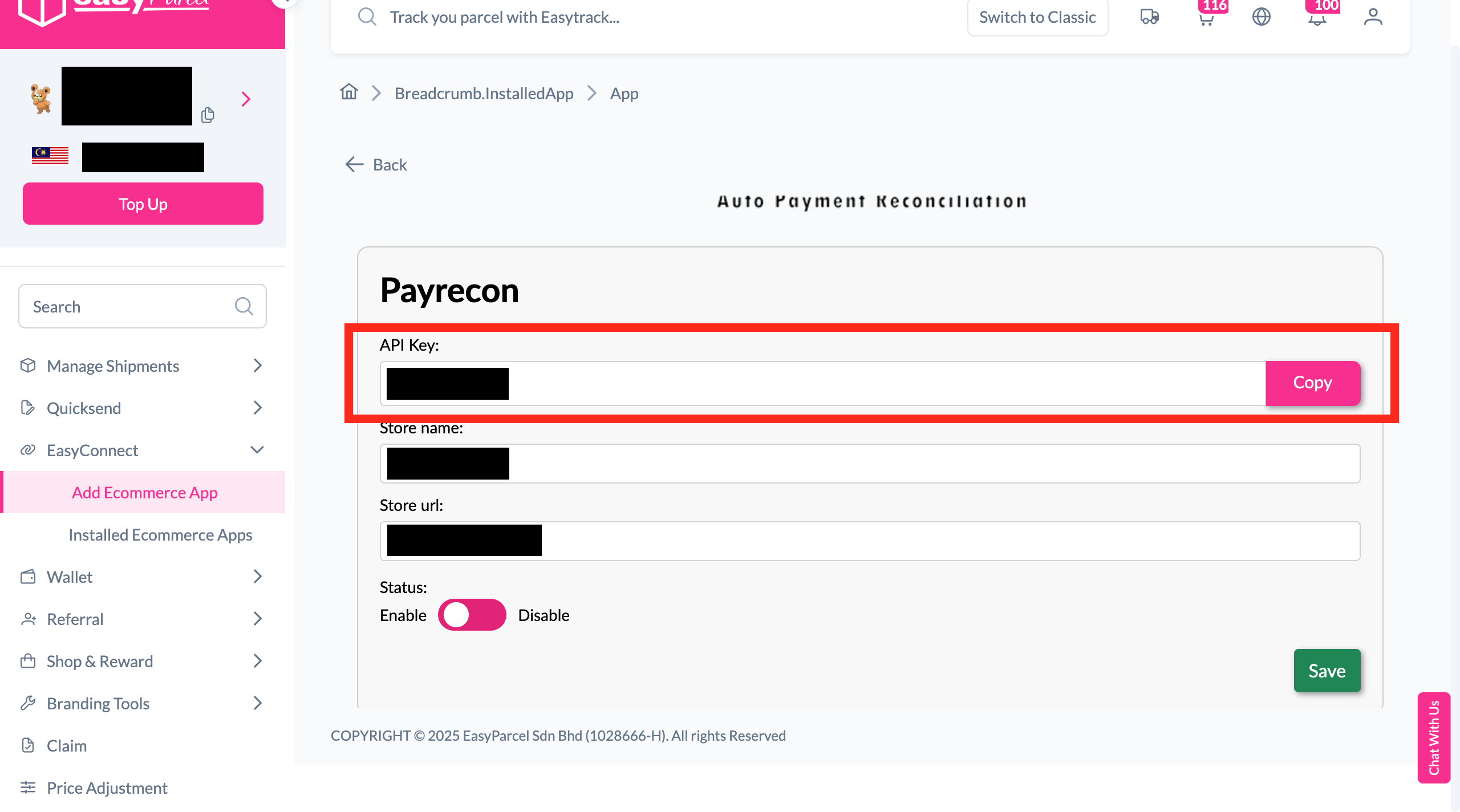
Copy Your Integration ID
Your store API key / Integration ID will be generated. Copy it — you'll need it in Step 6.
Login to Payrecon
Log in to your Payrecon account to continue setting up the integration.
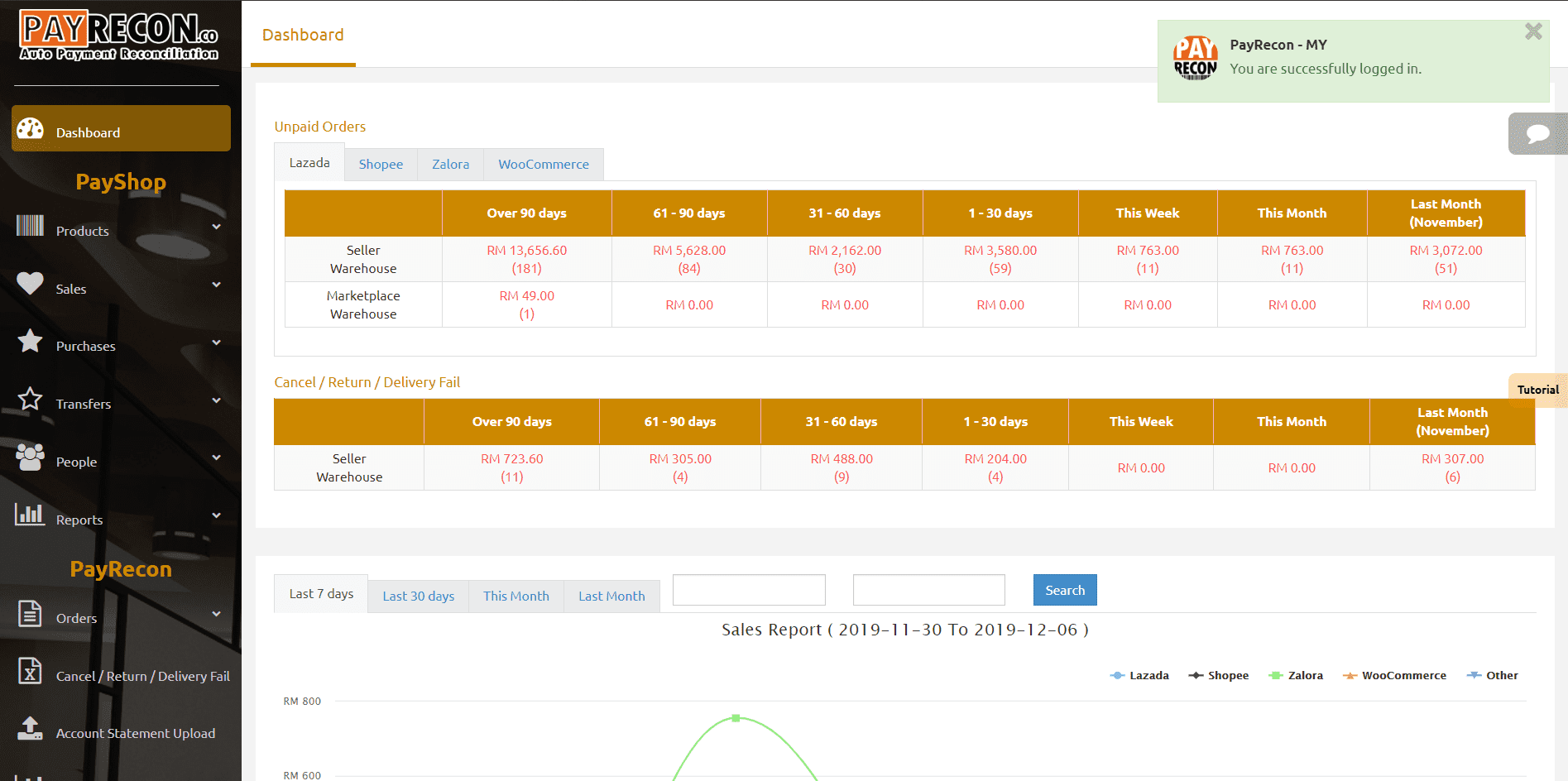
Go to User Settings
Navigate to Setting > User Settings. Select Other, then click Update API.
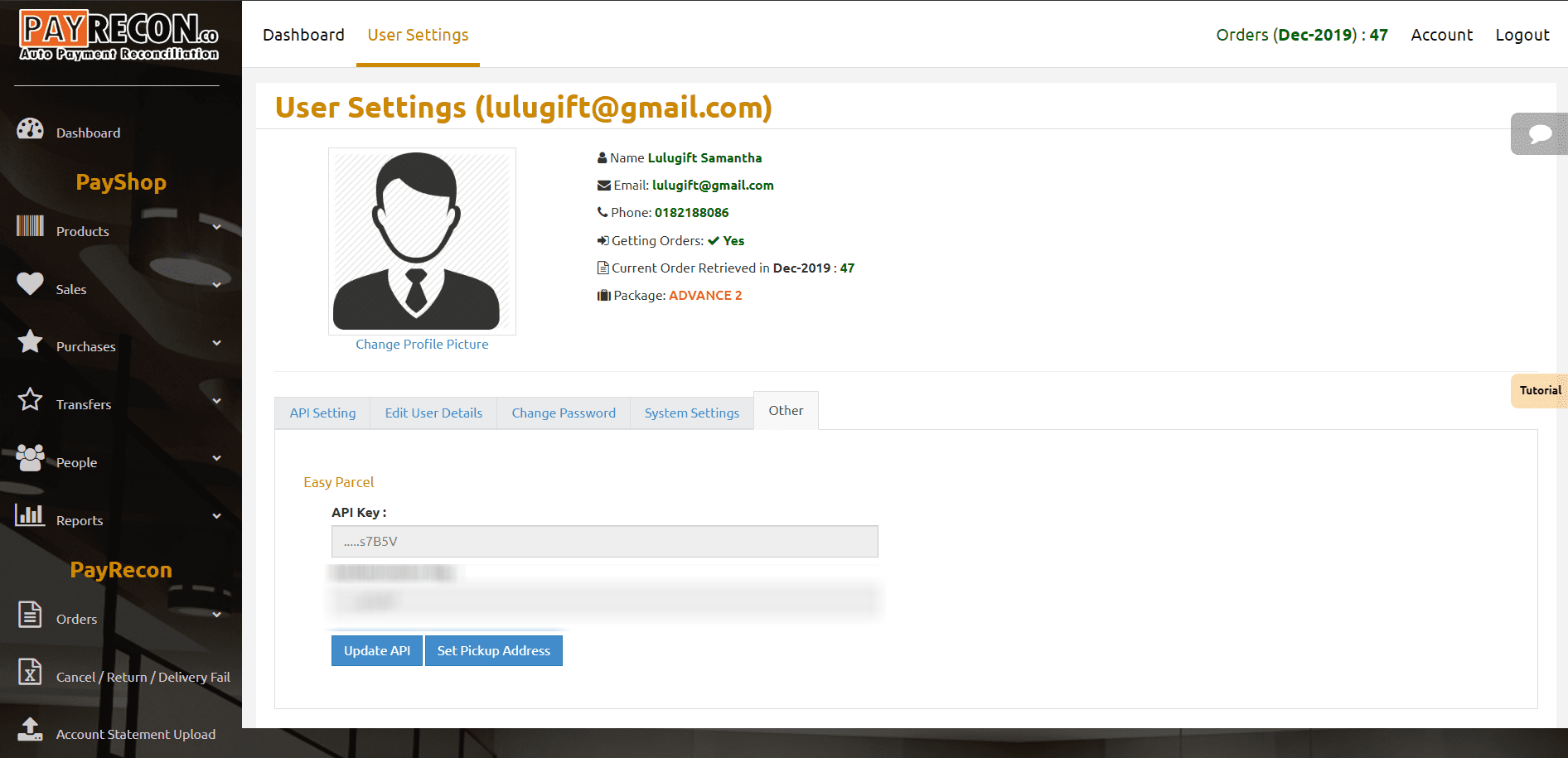
Paste API Key
Paste the API Key you copied in Step 3 into the respective column, then click Update.
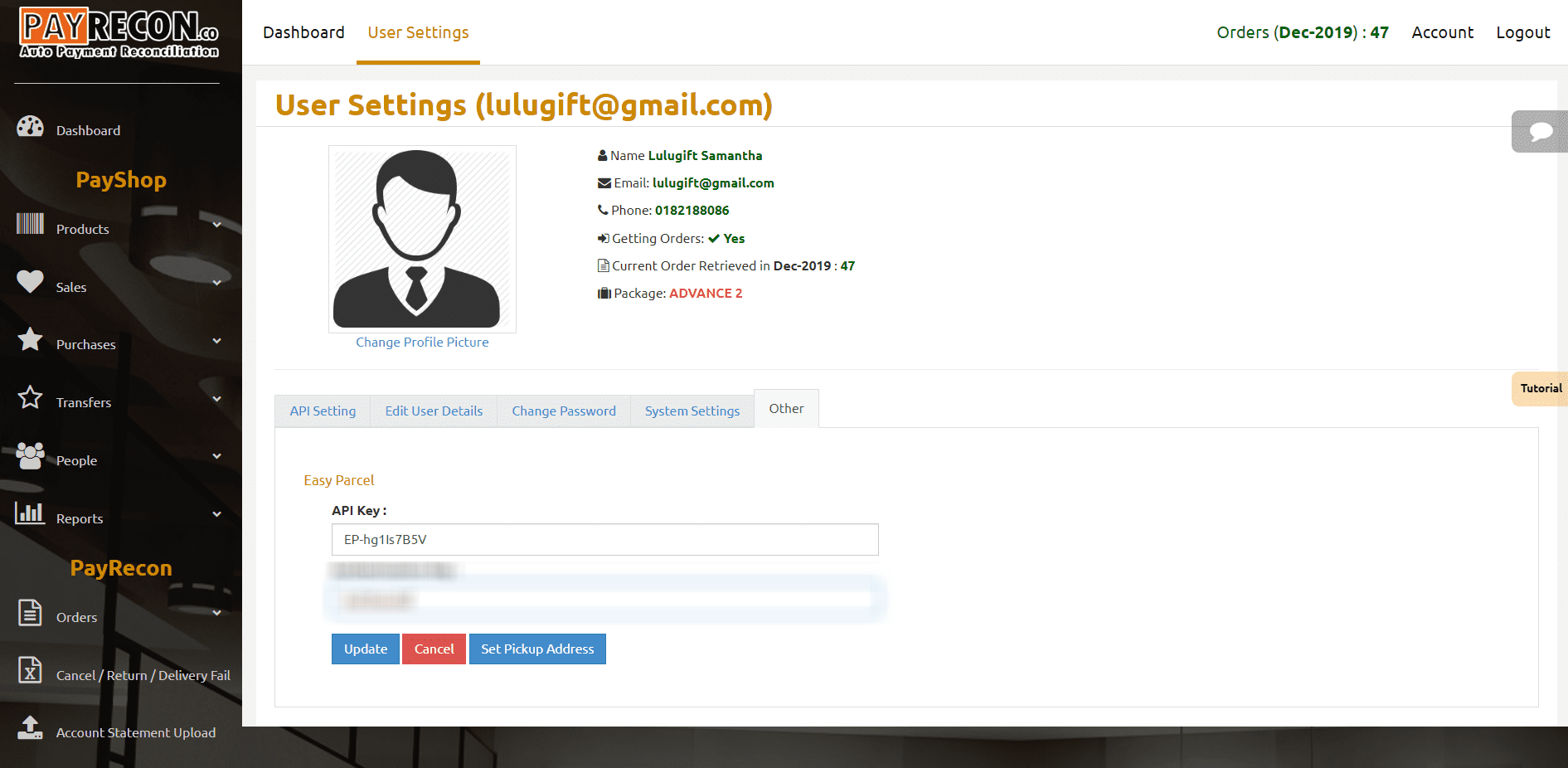
Set Pickup Address
Click on Set Pickup Address to configure the collection point for your shipments.
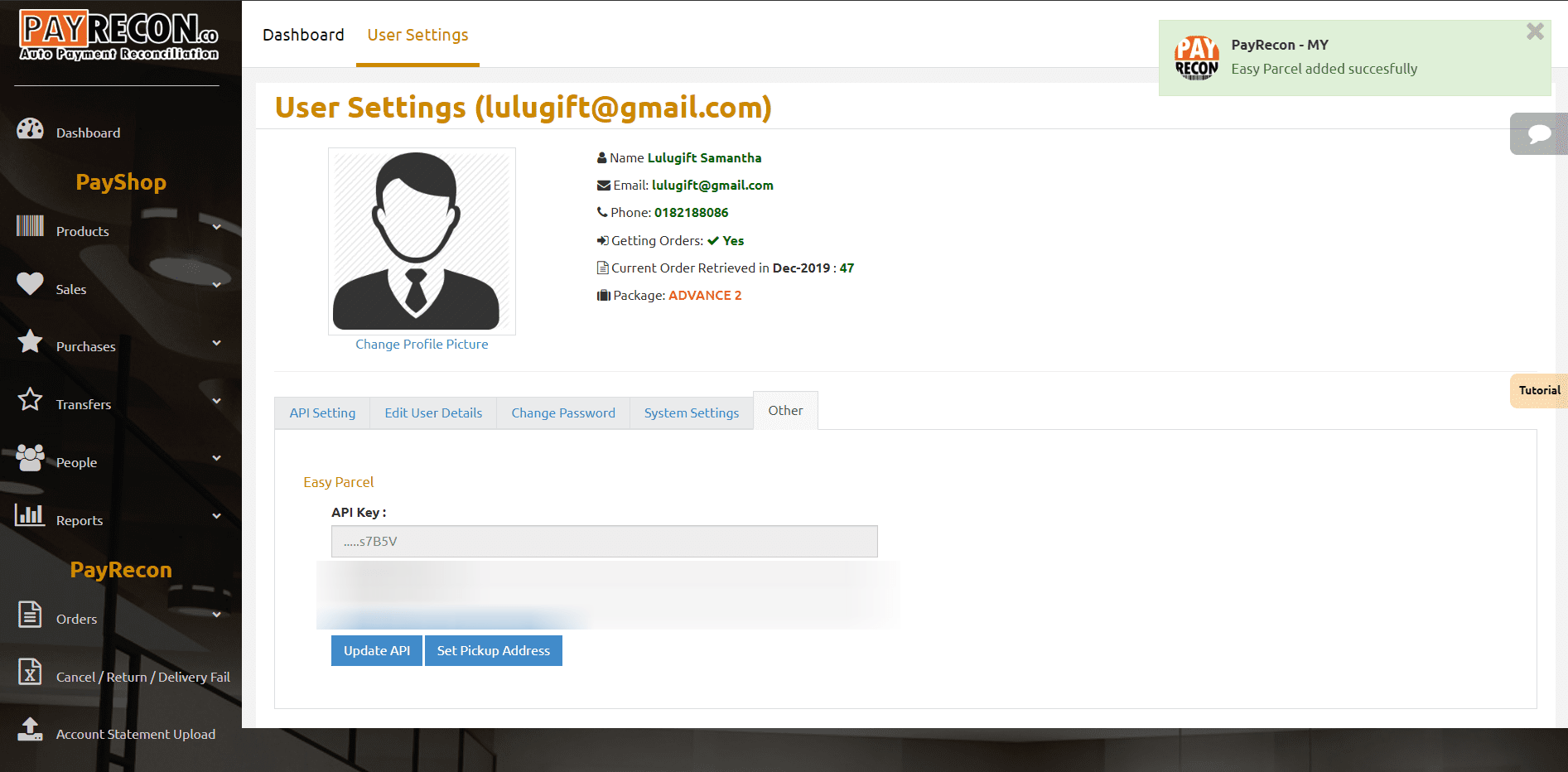
Save Pickup Location
Insert all required information for your pickup location, then click Save Location.
Select Order & Click EasyParcel
Select the order you want to process, then click Easy Parcel to proceed with booking.
Select Courier & Book
Choose your preferred courier and pickup date, then click Book to confirm the shipment.
Booking Confirmation
A success message will appear if the booking is successful. Click Close to continue.
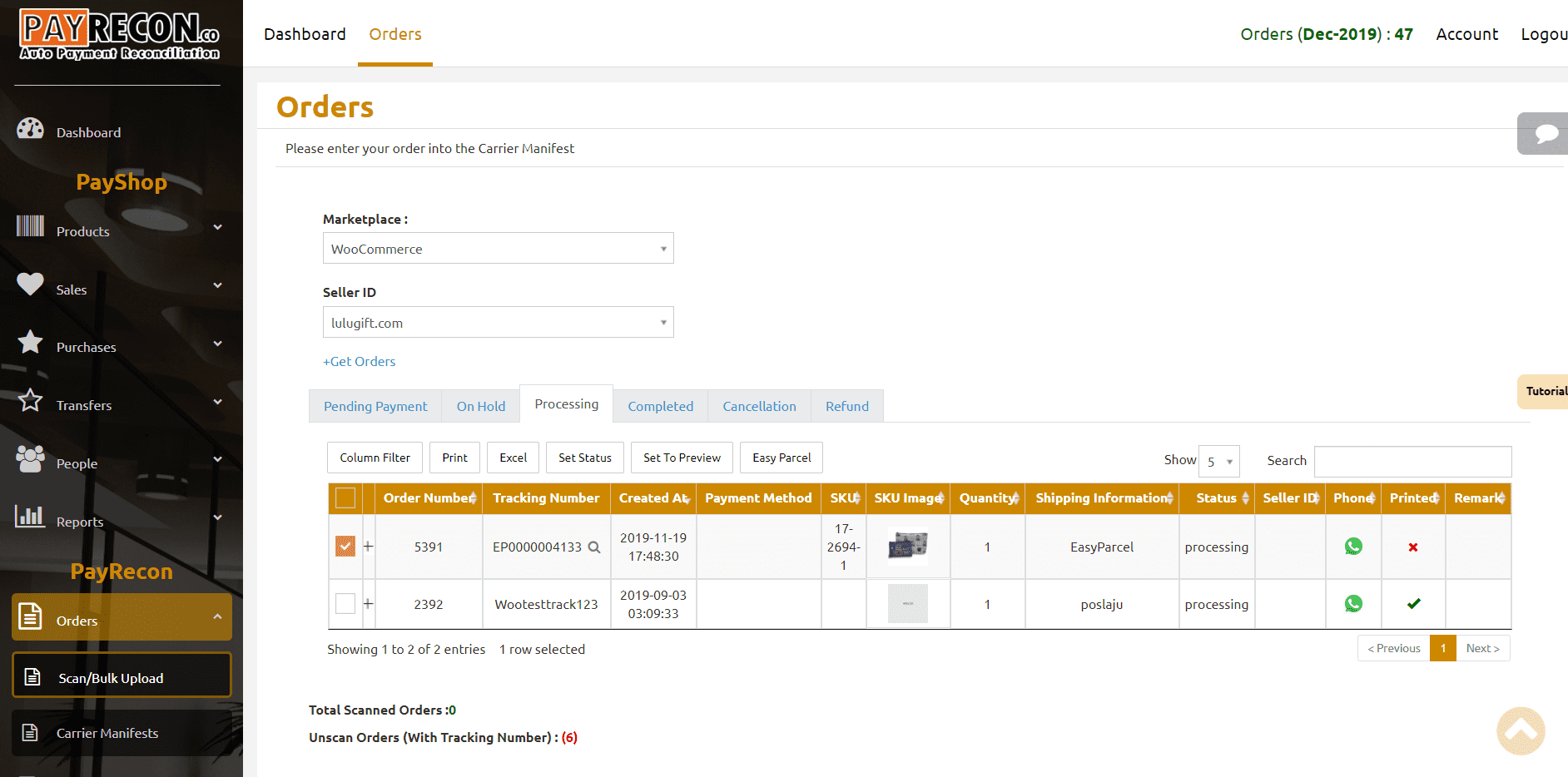
Tracking Number Generated
The tracking number is now displayed and your shipping label is ready to be printed.
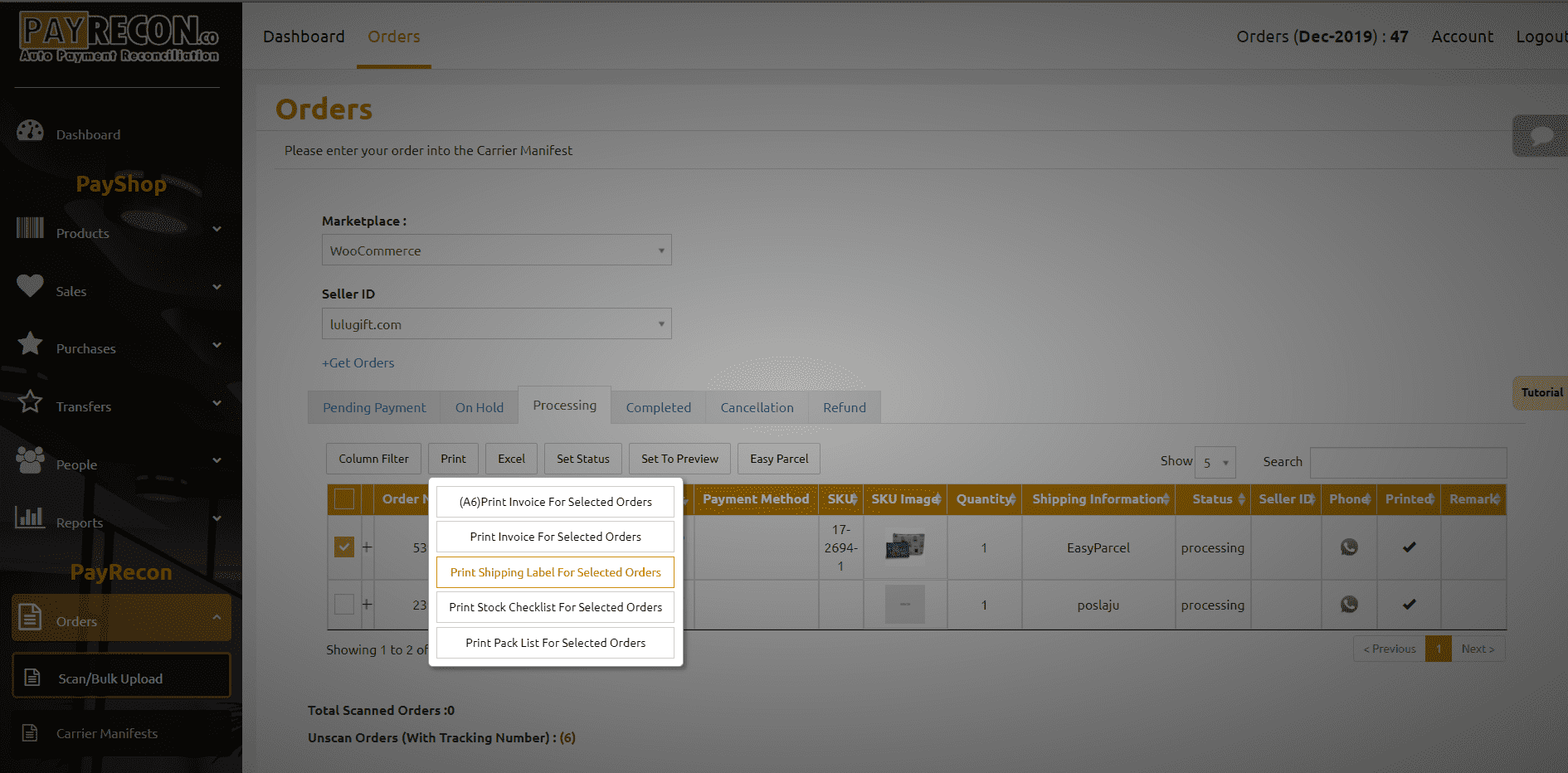
Print Shipping Labels
Click Print, then select Print Shipping Label for Selected Orders to generate your label.
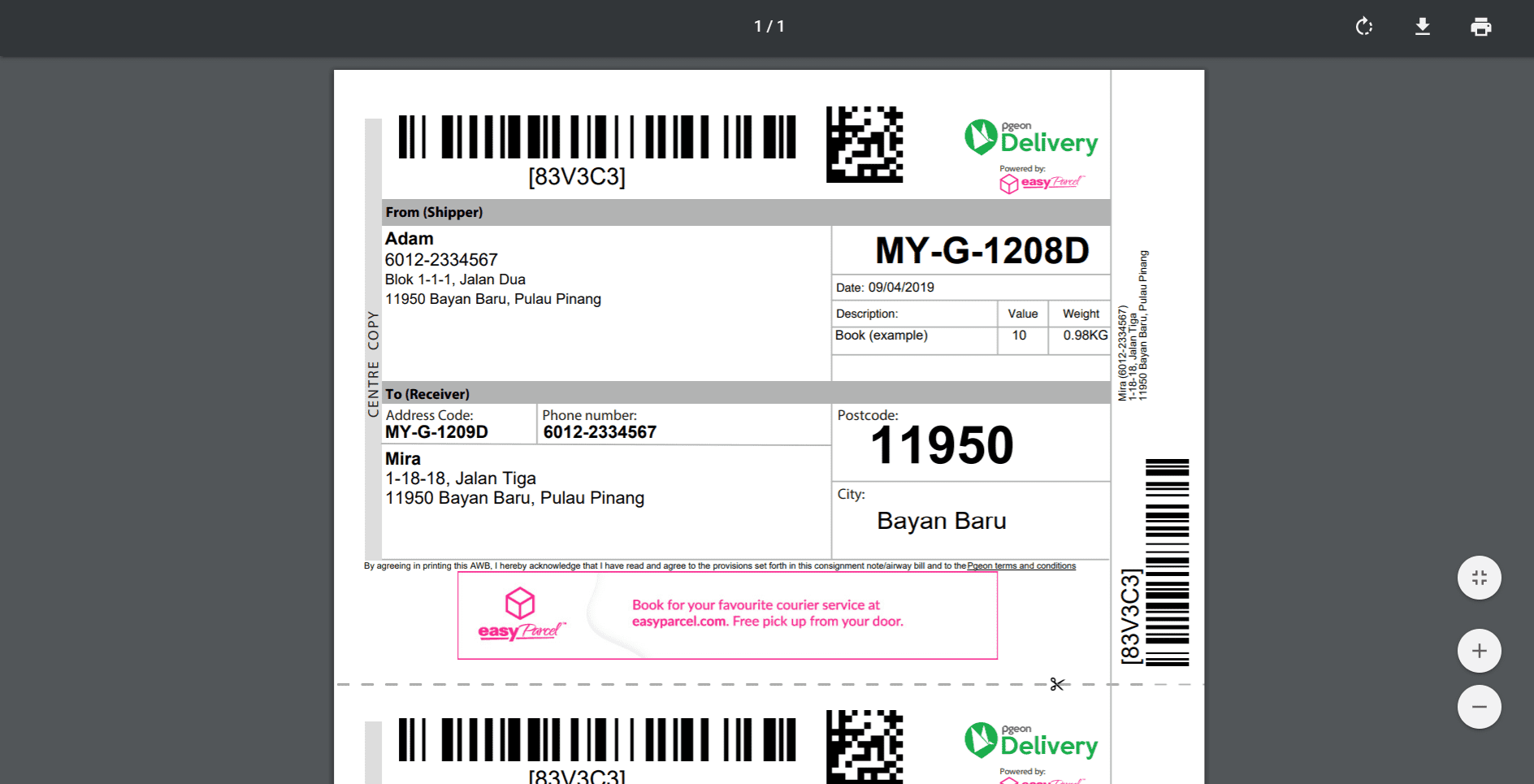
Shipping Label Ready
Your shipping label is generated and ready to print. Attach it to your parcel and hand it over to the courier. You're all set!
EasyConnect
Integrate Payrecon with EasyParcel in 14 steps.
Log in to your EasyParcel account, navigate to EasyConnect, search for 'Payrecon' and click 'Install App'.
Fill in your store name and store URL, then click 'Add'.
Your store API key / Integration ID will be generated. Copy it — you'll need it in Step 6.
Log in to your Payrecon account to continue the integration setup.
Navigate to Setting > User Settings. Select Other, then click Update API.
Paste the API Key from Step 3 into the respective column, then click Update.
Click on Set Pickup Address to configure your shipment collection point.
Insert all required information for your pickup location, then click Save Location.
Select the order to process, then click Easy Parcel to begin booking.
Select a courier and pickup date, then click Book to confirm.
A success message will appear if the booking is successful. Click Close to continue.
The tracking number is now shown and your shipping label is ready to print.
Click Print, then select Print Shipping Label for Selected Orders.
Your shipping label is ready. Print it out and attach it to the parcel. You're all set!