Malaysia
 Thailand
 Indonesia

EasyConnect
Integrate 91APP with EasyParcel in 8 steps.
-
Install 91APP App
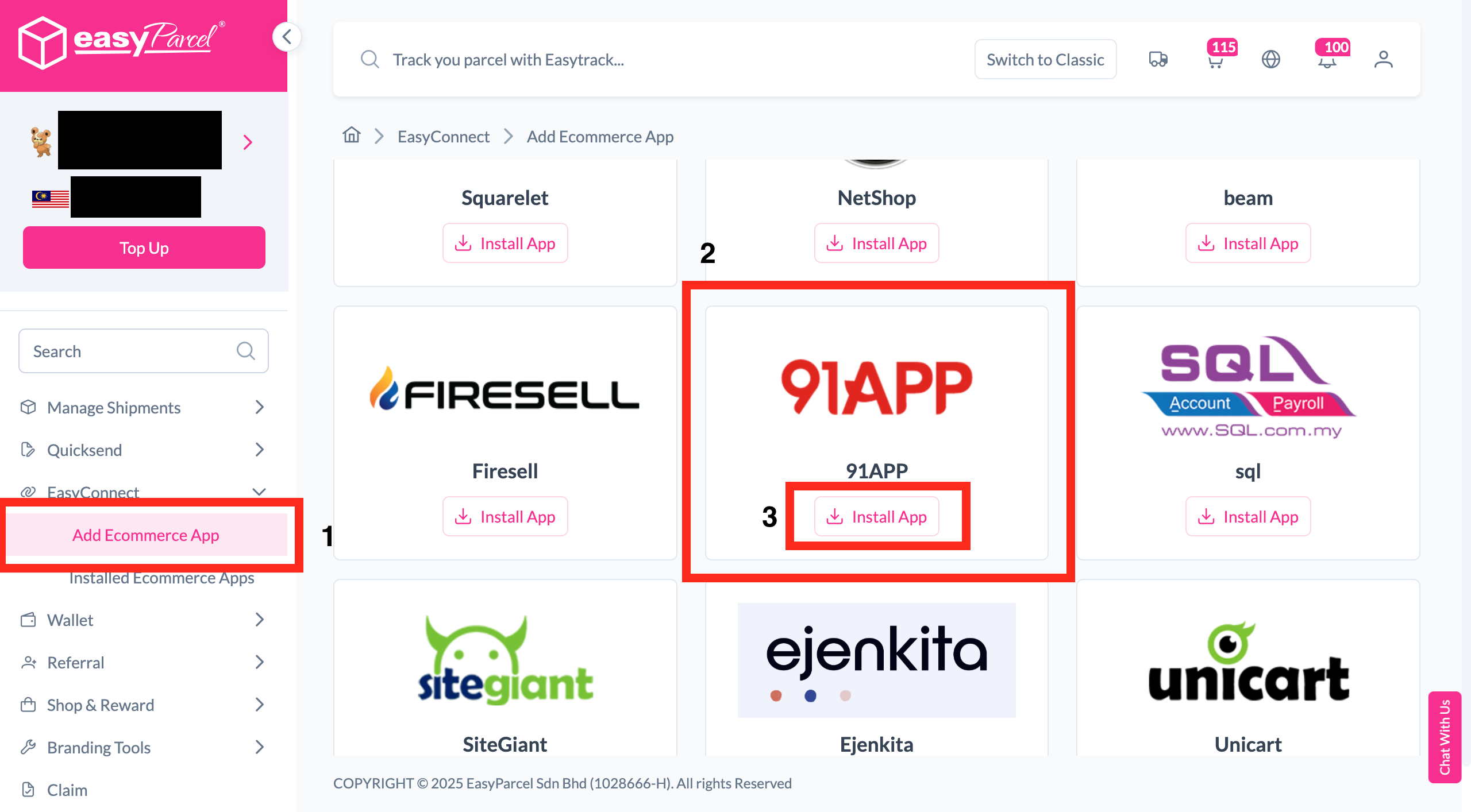
Under "Integration", click "Add Ecommerce App", find "91App" and click "Install App".
-
Fill In Store Details
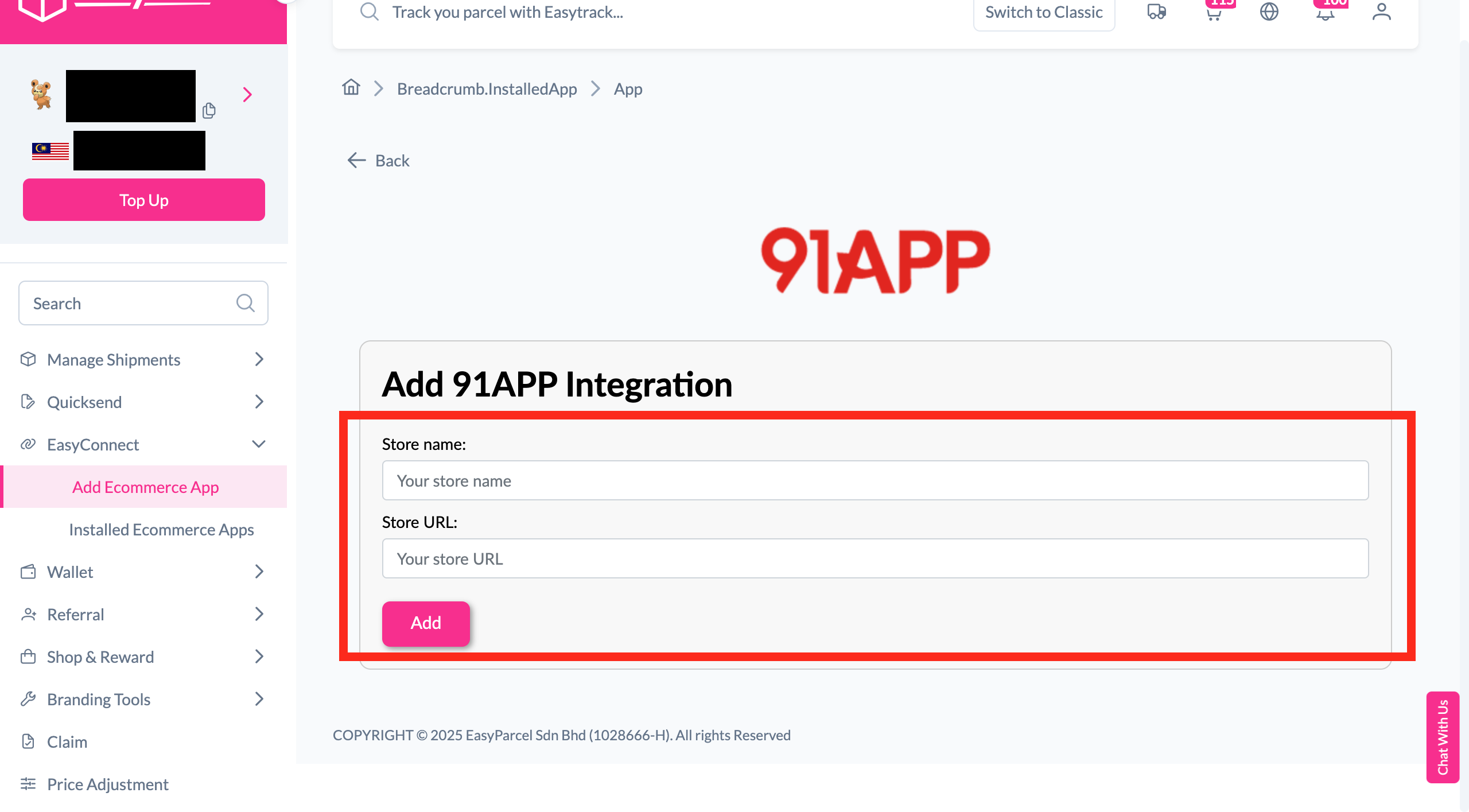
Fill in the Store name and Store URL, then click "Add".
-
Copy Your API Key
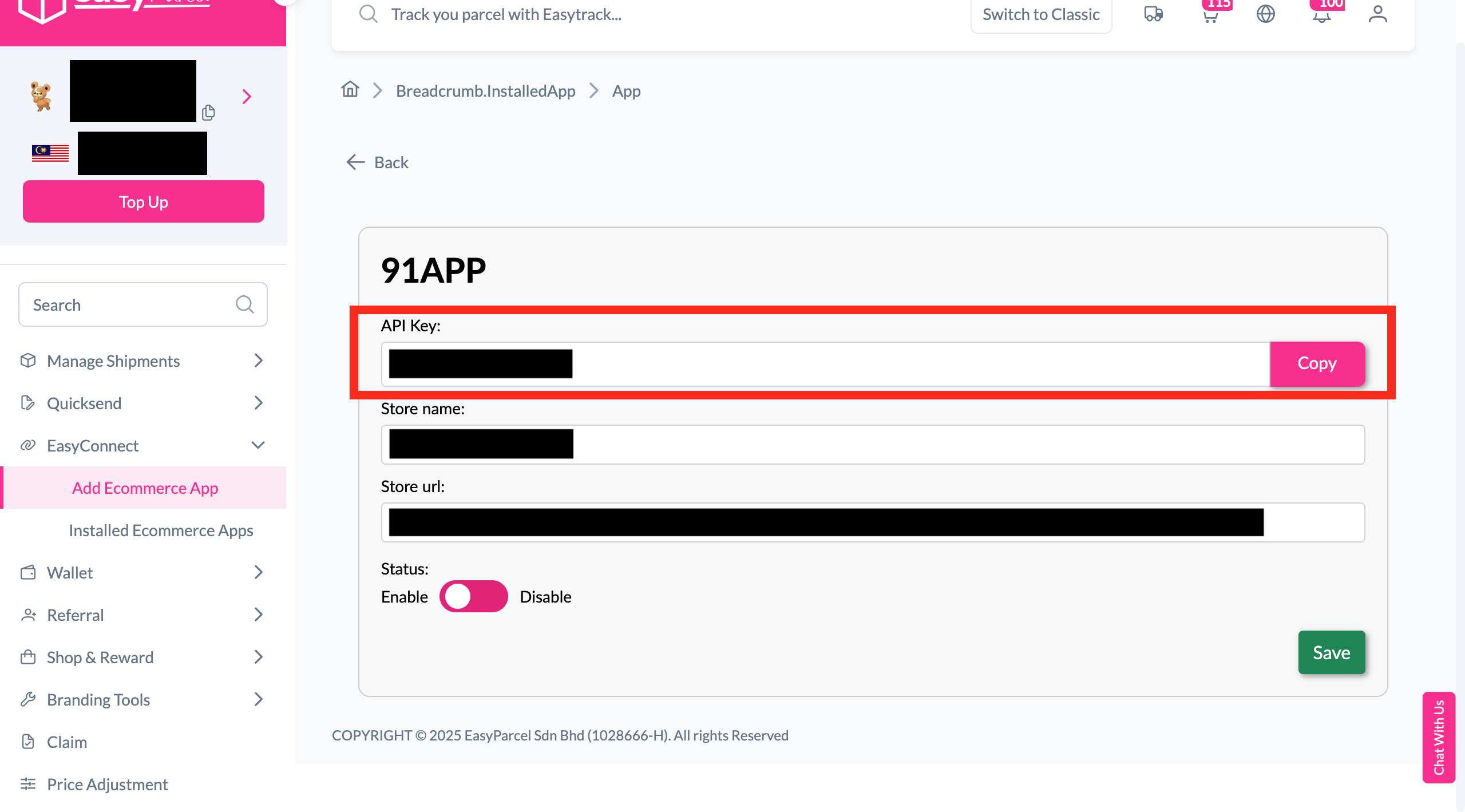
Your store API key / Integration ID will be generated. Copy it to integrate with your store.
-
Configure in 91APP
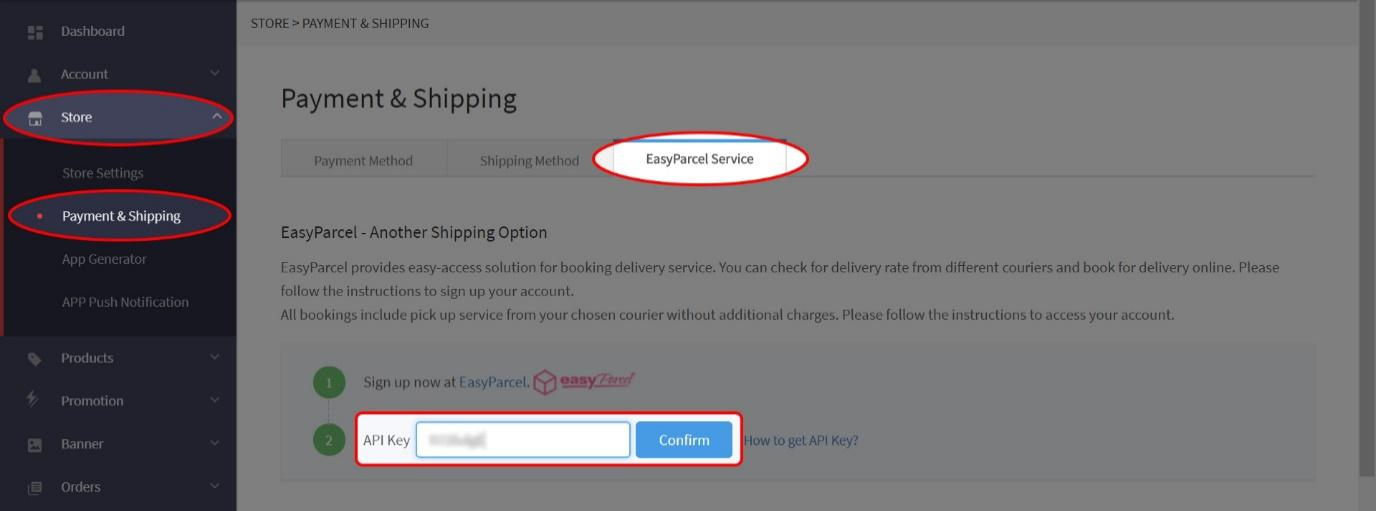
In your 91APP account, go to Store > Payment & Shipping > EasyParcel Service and key in your API Key.
-
Select Order to Ship
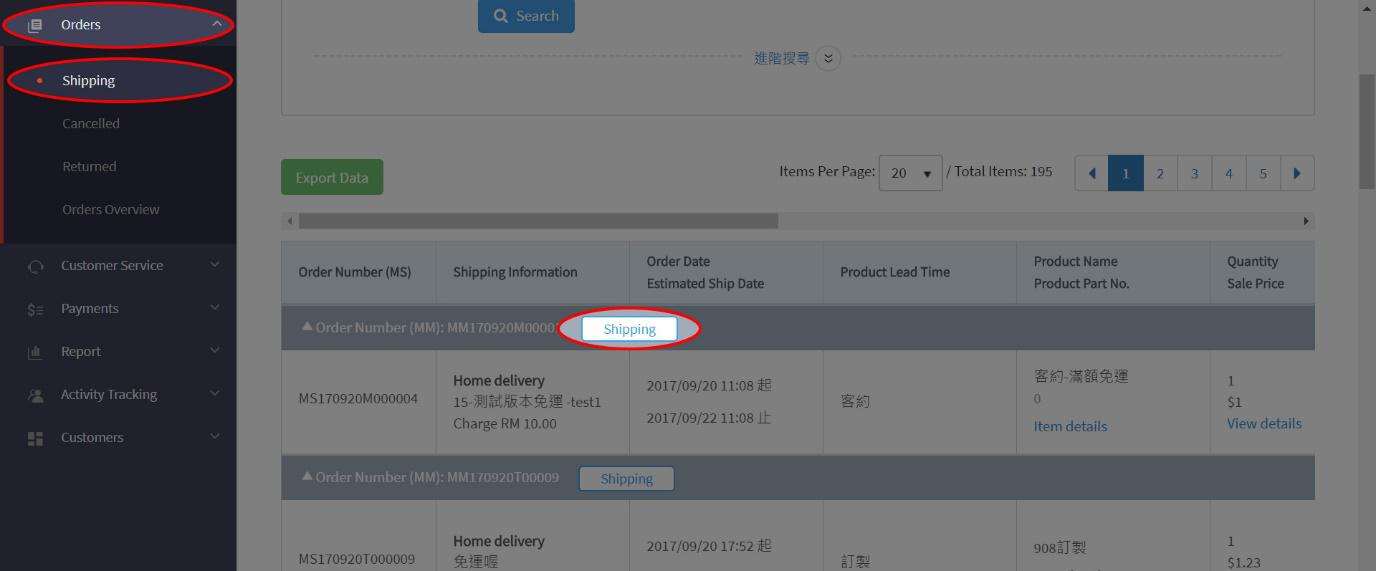
Go to Orders > Shipping. Select the order you want to process and click the "Shipping" button.
-
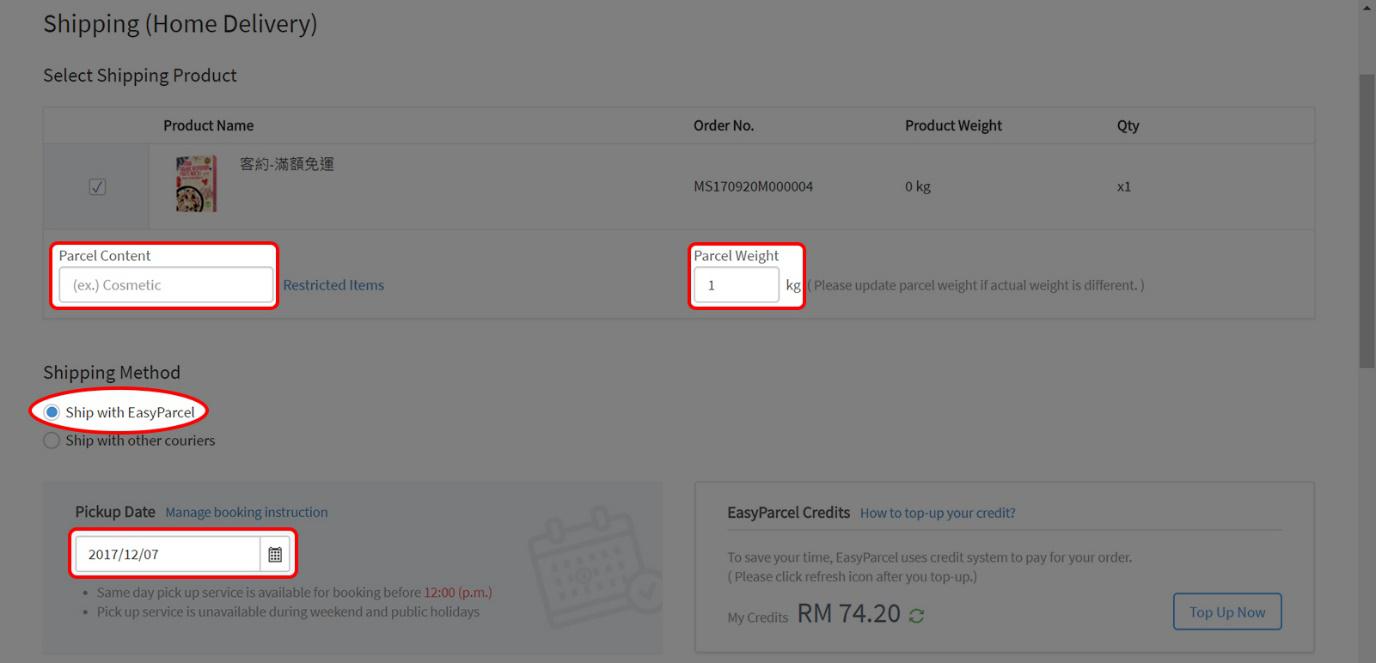
Verify Shipping Details
Ensure Shipping Method is "Ship with EasyParcel" and all shipping details are complete before booking.
-
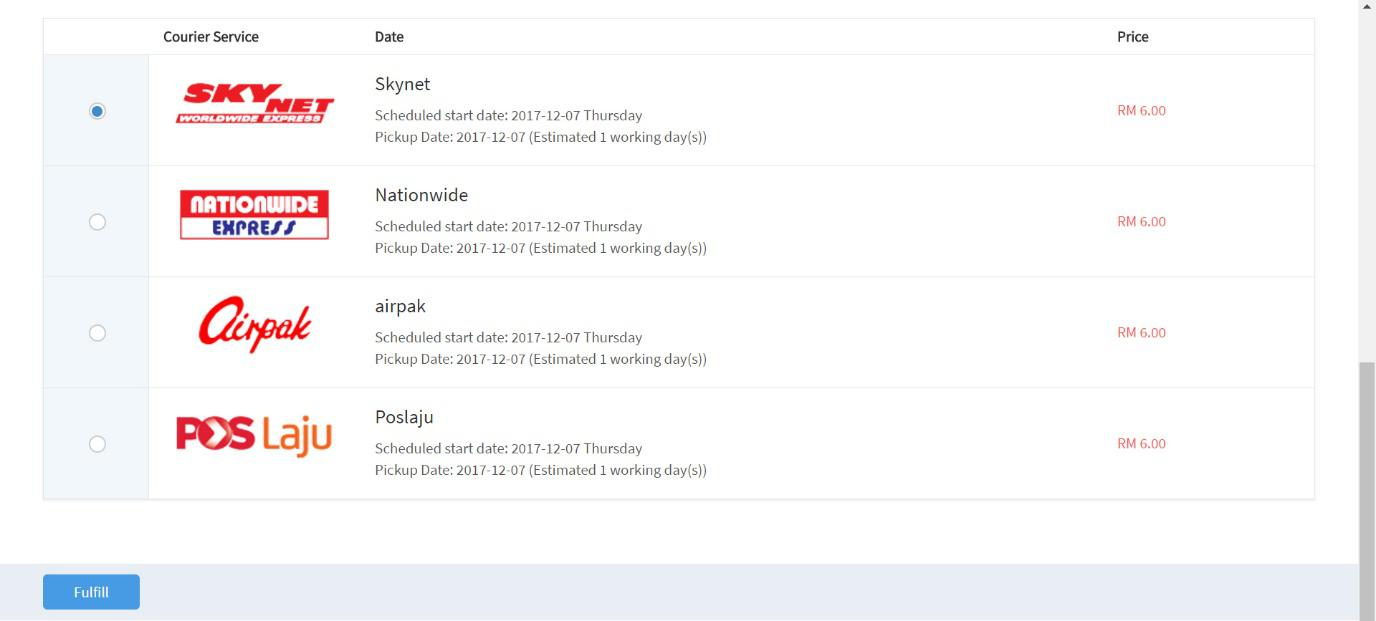
Choose Courier & Fulfill
A list of courier options will appear. Select your preferred courier and click "Fulfill".
-
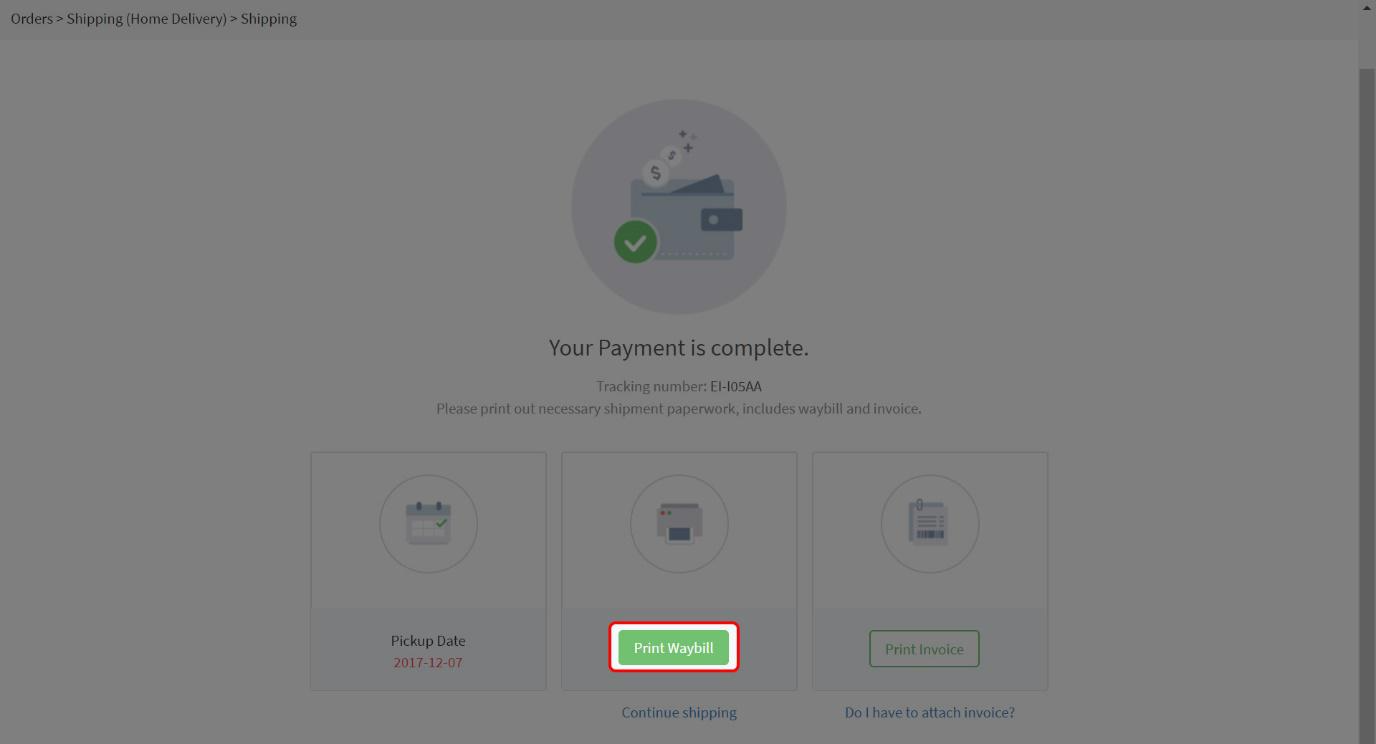
Print Waybill
Once the booking is successfully made, click on "Print Waybill".
Install 91APP App
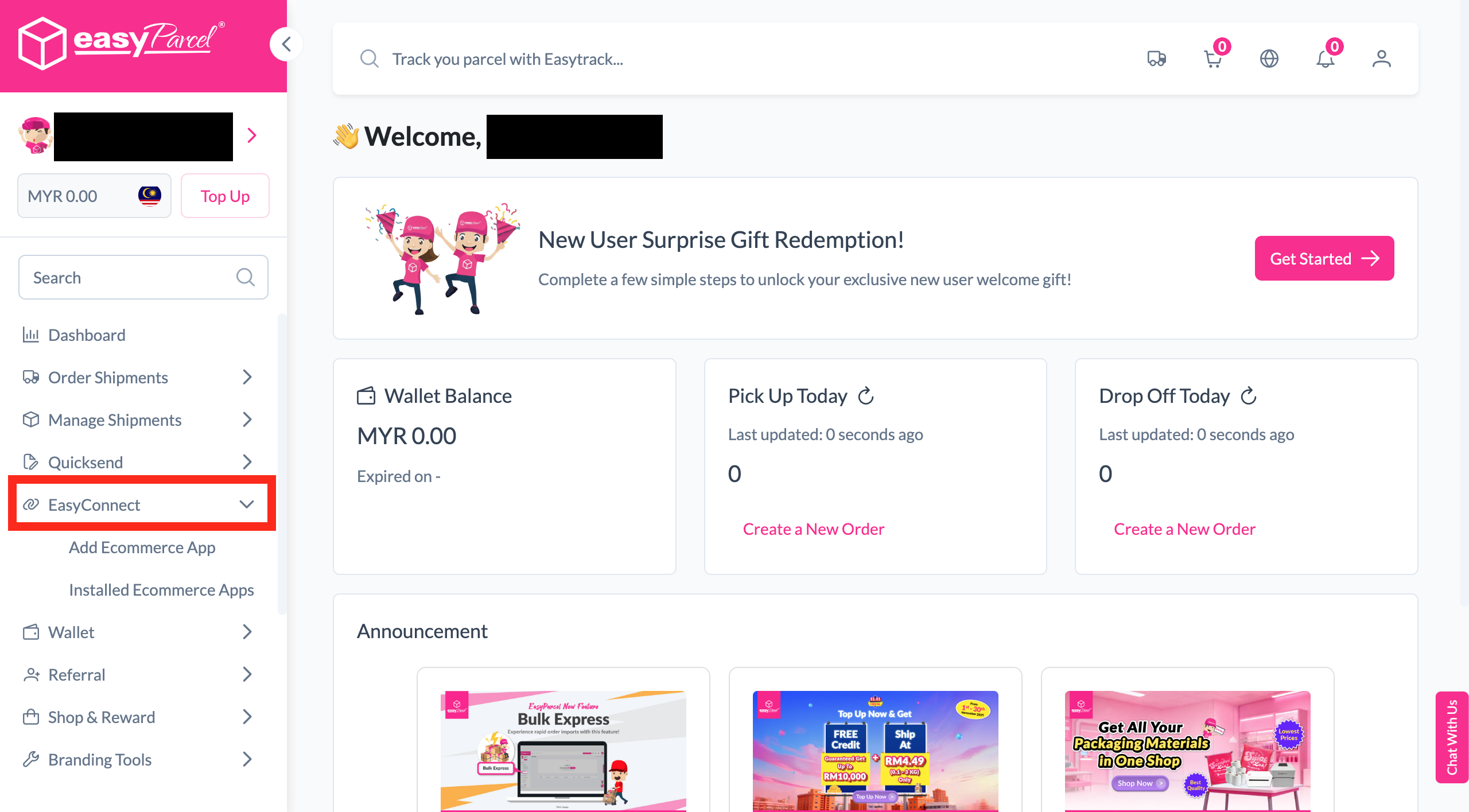
Log in to your EasyParcel account, navigate to EasyConnect, then click 'Add Ecommerce App'. Search for '91App' and click 'Install App' to get started.
Fill In Store Details
Fill in your Store name and Store URL, then click 'Add' to proceed.
Copy Your API Key
Your store API key / Integration ID will be generated. Copy it and use it to integrate with your 91APP store.
Configure in 91APP
Login to your 91APP account, go to Store > Payment & Shipping > EasyParcel Service. Key in your API Key / Integration ID to activate the integration.
Select Order to Ship
Once activated, go to Orders > Shipping. Select the order you want to process and click on the 'Shipping' button.
Verify Shipping Details
Make sure your Shipping Method is set to 'Ship with EasyParcel' and all shipping details are complete before proceeding to book.
Choose Courier & Fulfill
A list of courier options will be presented. Select your preferred courier and click 'Fulfill' to complete the booking.
Print Waybill
Once the booking is successfully made, click on 'Print Waybill' — your shipment is all set!
EasyConnect
Integrate 91APP with EasyParcel in 8 steps.
Log in to your EasyParcel account, navigate to EasyConnect, then click 'Add Ecommerce App'. Search for '91App' and click 'Install App' to get started.
Fill in your Store name and Store URL, then click 'Add' to proceed.
Your store API key / Integration ID will be generated. Copy it and use it to integrate with your 91APP store.
Login to your 91APP account, go to Store > Payment & Shipping > EasyParcel Service. Key in your API Key / Integration ID.
Once activated, go to Orders > Shipping. Select the order you want to process and click on the 'Shipping' button.
Make sure your Shipping Method is set to 'Ship with EasyParcel' and all shipping details are complete before proceeding to book.
A list of courier options will be presented. Select your preferred courier and click 'Fulfill' to complete the booking.
Once the booking is successfully made, click on 'Print Waybill' — your shipment is all set!