Singapore
 Thailand
 Indonesia

EasyConnect
Integrate Squarespace with EasyParcel in 7 steps.
-
Install Squarespace App
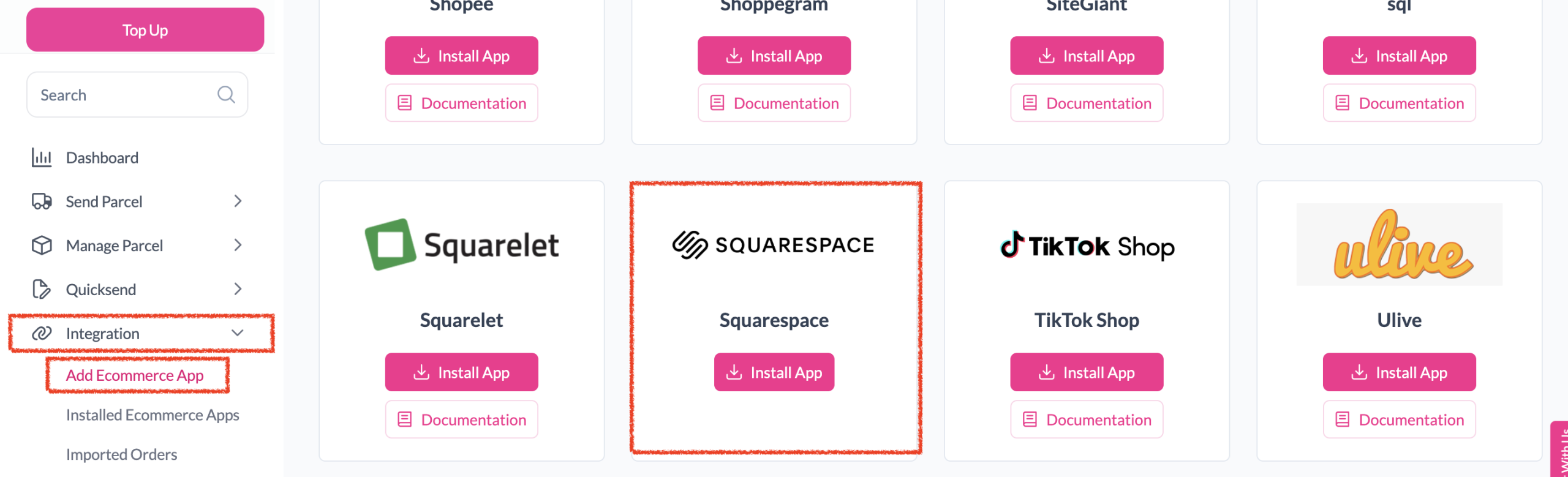
Under "Integration", click "Add Ecommerce App", find "Squarespace" and click "Install App".
-
Authorize Access
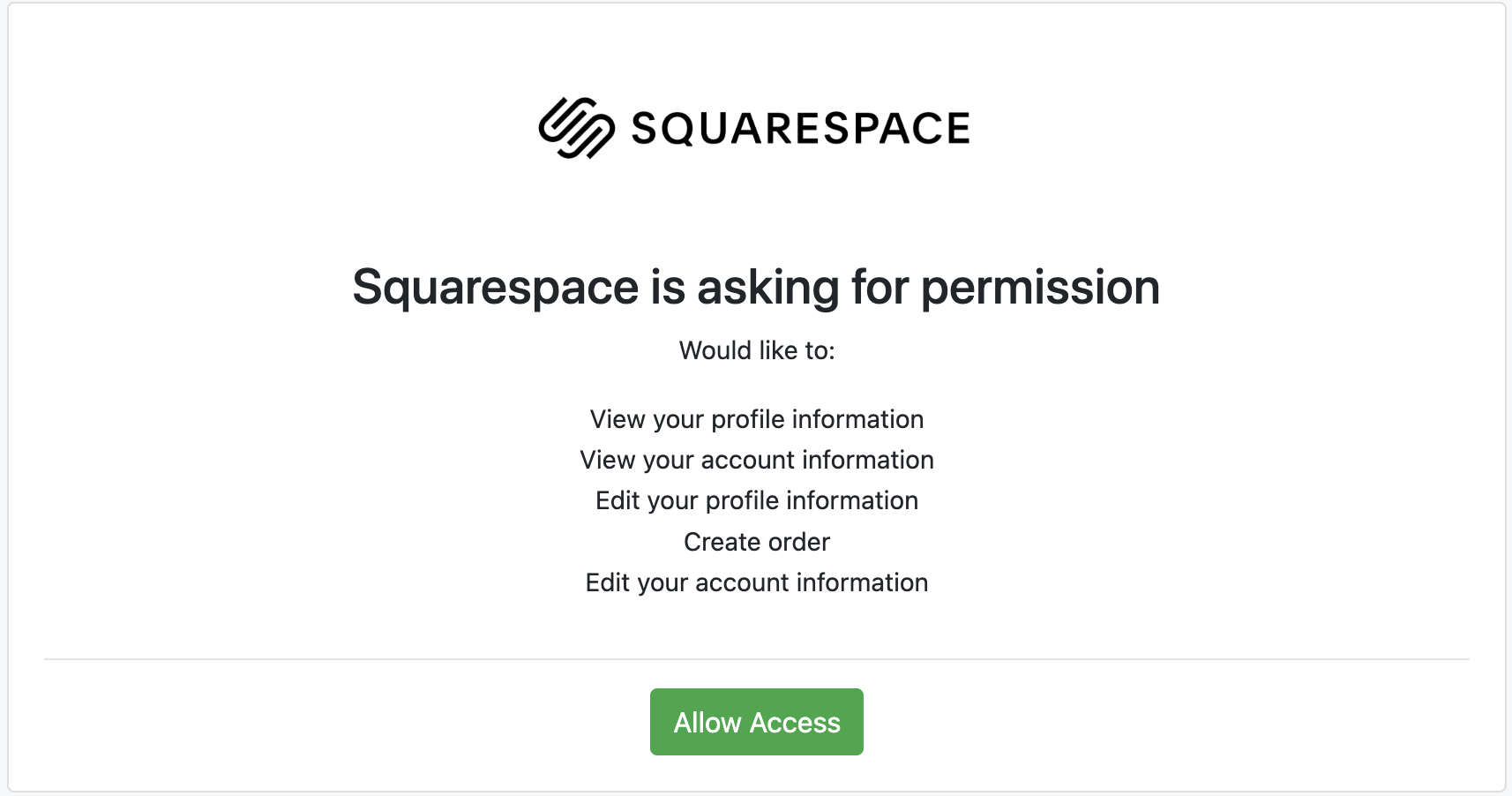
Click "Allow Access" to authorize EasyParcel to access your Squarespace store data.
-
Enter Store Details
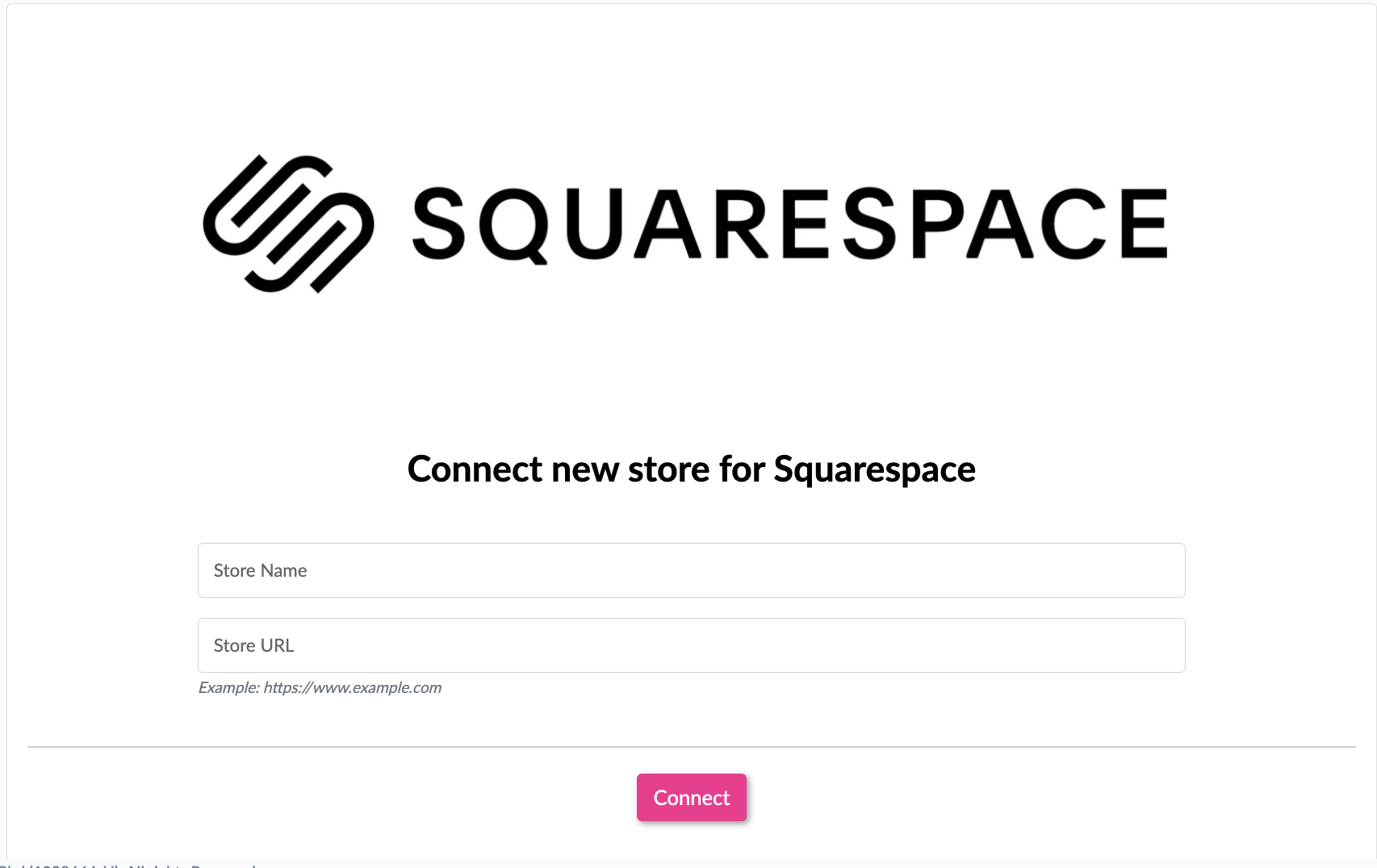
Enter your store name and store URL, then click "Connect".
-
Grant Squarespace Permissions
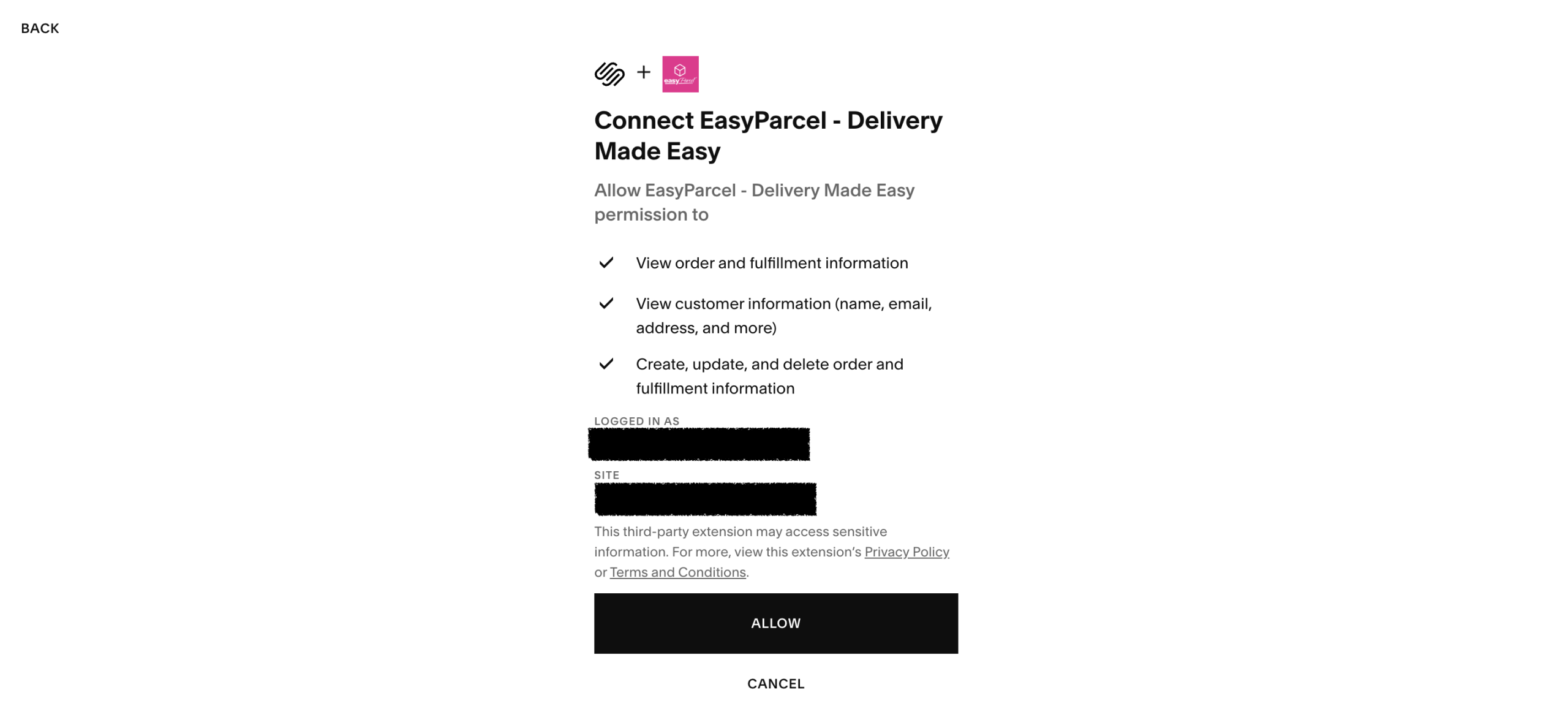
You'll be redirected to Squarespace. Click "Allow" to grant EasyParcel the permissions.
-
Integration Complete
You'll be redirected back to EasyParcel — the integration is now active.
-
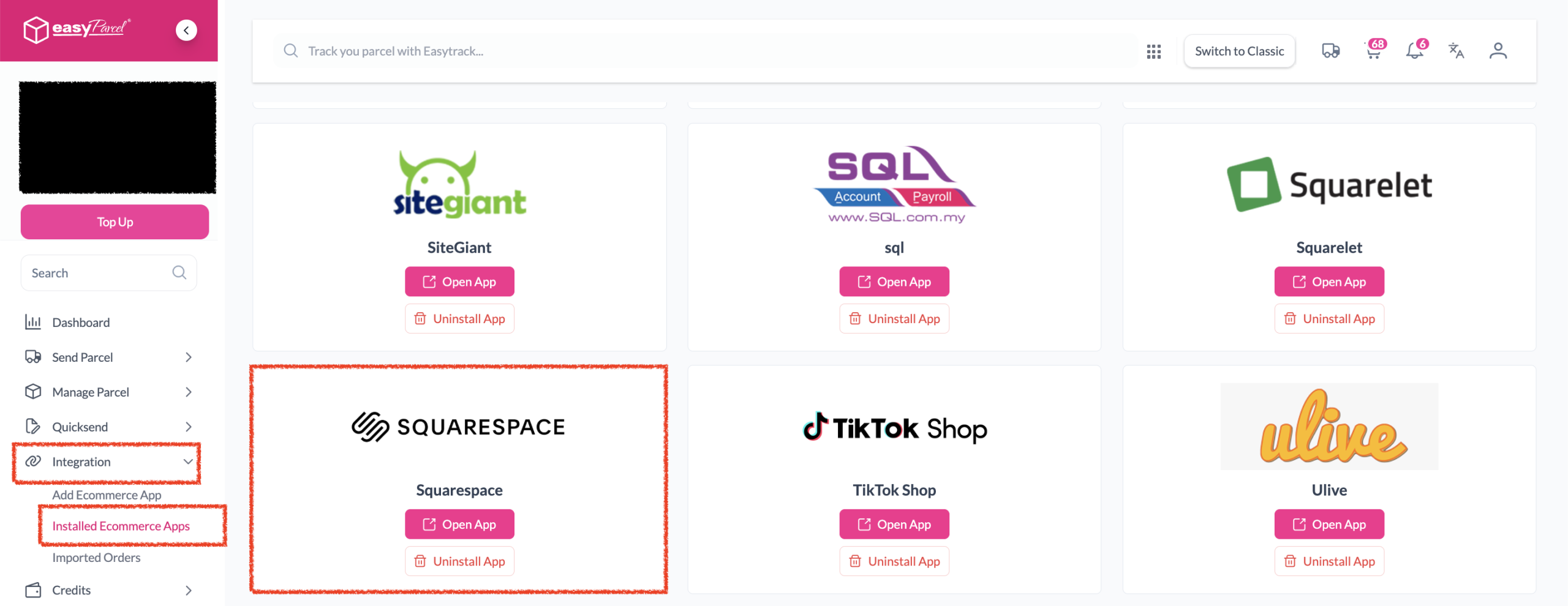
Verify Installation
Under "Installed Ecommerce Apps", confirm Squarespace is successfully installed.
-
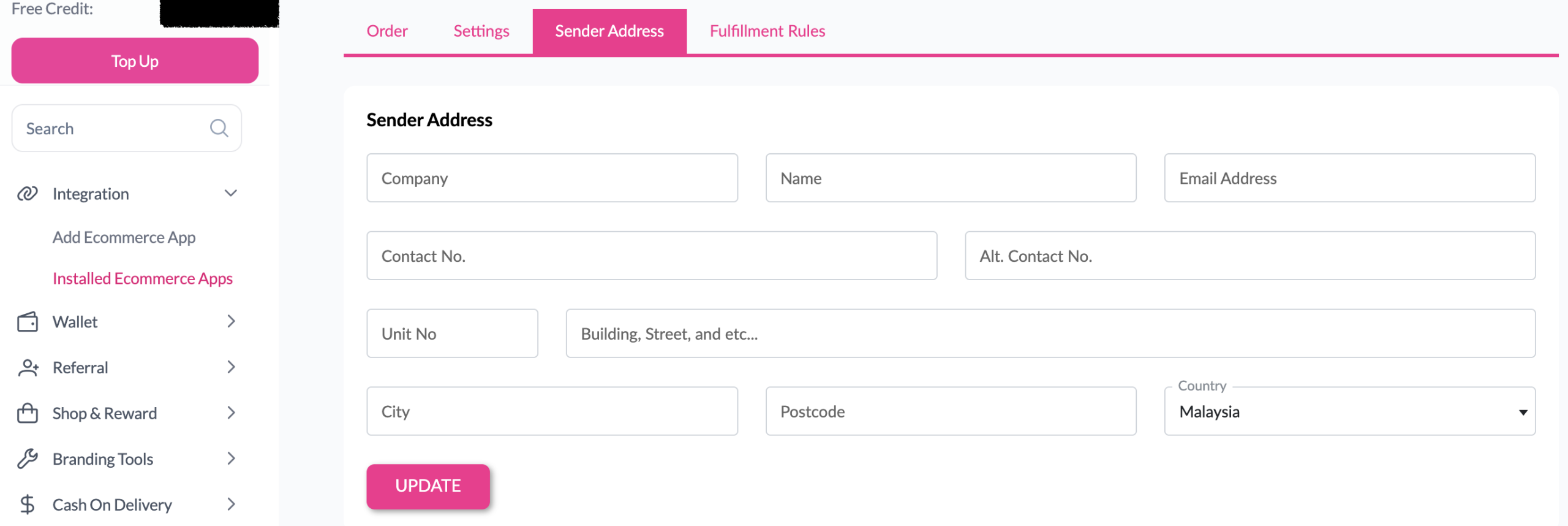
Set Up Sender Address
In the store, click "Sender Address", fill in your sender details and click "Update".
Install Squarespace App
Log in to your EasyParcel account. Under the Integration section, click 'Add Ecommerce App', find 'Squarespace' and click 'Install App'.
Authorize Access
Click 'Allow Access' to authorize EasyParcel to access your Squarespace store data.
Enter Store Details
Enter your store name and store URL, then click 'Connect' to proceed.
Grant Squarespace Permissions
You will be redirected to Squarespace to grant app permissions. Click 'Allow' to authorise EasyParcel.
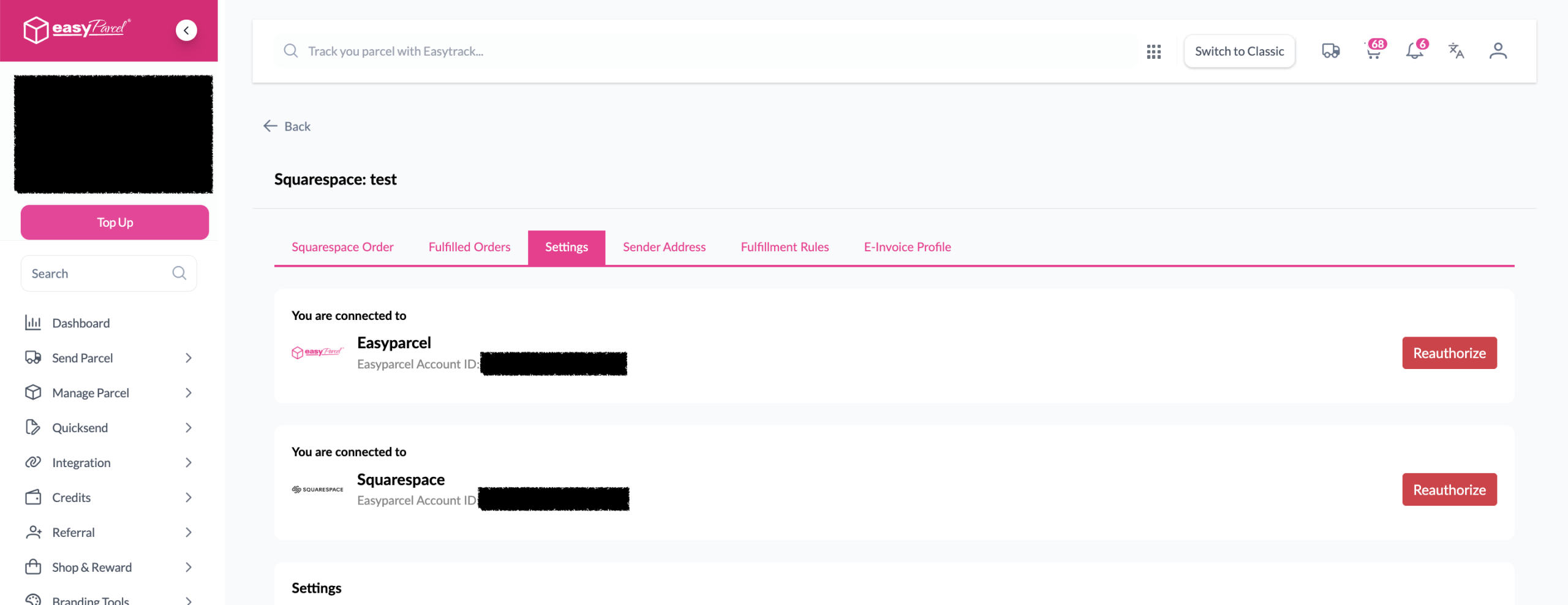
Integration Complete
You will be redirected back to EasyParcel — the integration is now active and complete.
Verify Installation
Under Integration, click 'Installed Ecommerce Apps' and find Squarespace — you should see it listed as successfully installed.
Set Up Sender Address
In the store, click 'Sender Address', fill in your sender details, then click 'Update' — your Squarespace setup in EasyParcel is complete!
EasyConnect
Integrate Squarespace with EasyParcel in 7 steps.
Log in to EasyParcel. Under Integration, click 'Add Ecommerce App', find 'Squarespace' and click 'Install App'.
Click 'Allow Access' to authorize EasyParcel to access your Squarespace store data.
Enter your store name and store URL, then click 'Connect'.
You'll be redirected to Squarespace. Click 'Allow' to grant EasyParcel the necessary permissions.
You'll be redirected back to EasyParcel — the integration is now active and complete.
Under Installed Ecommerce Apps, confirm Squarespace is listed as successfully installed.
Click 'Sender Address', fill in your sender details, then click 'Update'.